Use swipe actions
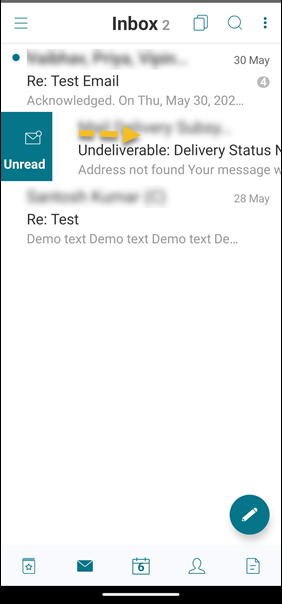
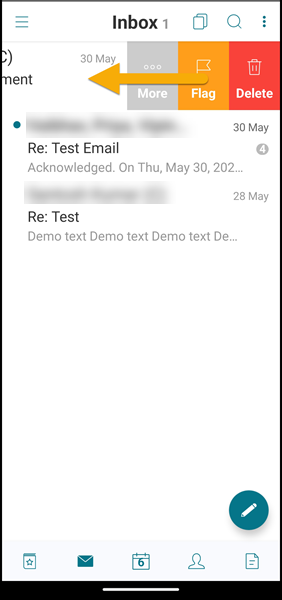
In Secure Mail, when you swipe an email either left or right, you get more options. You can swipe left, long swipe left, or swipe right.
Note:
This feature is available for iOS and Android.
Depending on what folder you're in, swiping an email reveals different options. You then tap an option to perform an action.
The following table lists the options depending on the folder you are in and the kind of swipe you make.
| Folders | Left swipe | Long left swipe | Right swipe |
|---|---|---|---|
| Inbox, Sent, Delete | Delete; Flag or Unflag; More | Delete | Mark as Read or Unread |
| Drafts | Delete; Flag or Unflag | Delete | Mark as Read or Unread |
| Outbox | Delete; Resend or Cancel | Delete | No Action |
| Server Results | Forward; Reply and Reply All | Reply and Reply All | No Action |
The following image is a representaion of swiping action.
The following sections provide more information about each menu item.
More option
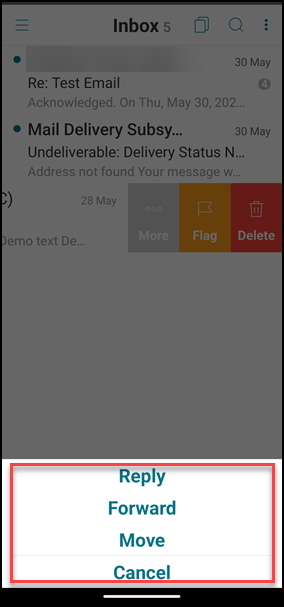
The More menu shows the following options:
-
Reply
-
Forward
-
Move
-
Cancel
Flag option
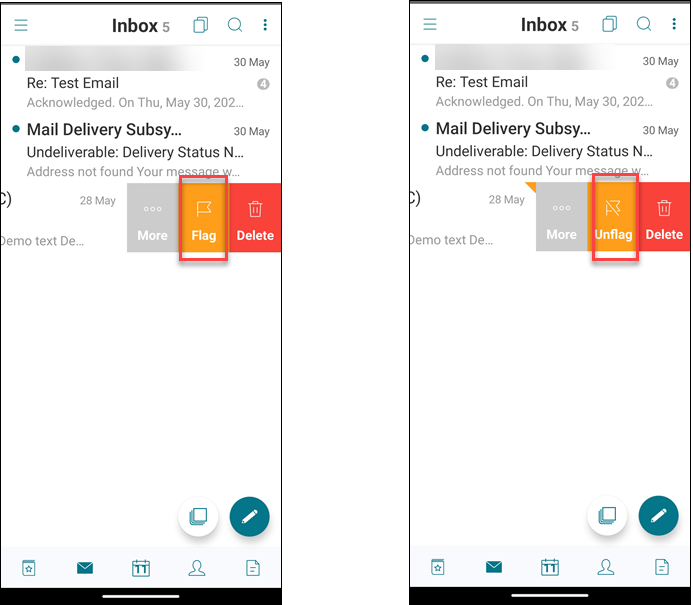
The Flag option allows you to mark the email for a faster reference. Using this option, you can flag or unflag an email.
Swipe left and tap Flag or Unflag.
Delete option
The Delete option allows you to delete the selected email.
Swipe left and tap Delete.
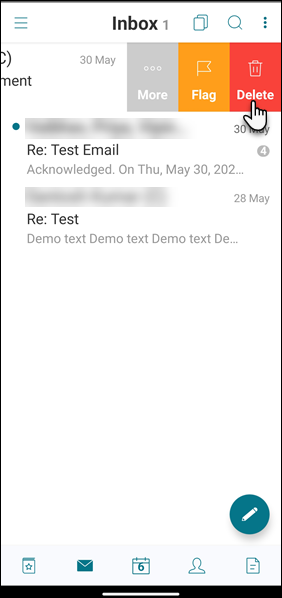
You can also delete an email by long swiping the email item toward the left.
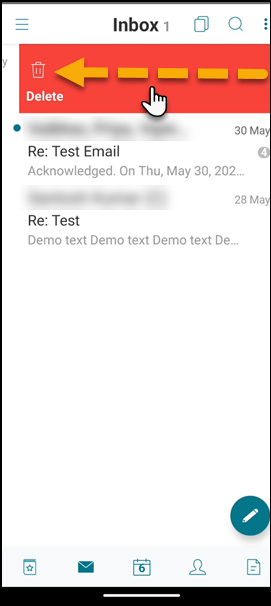
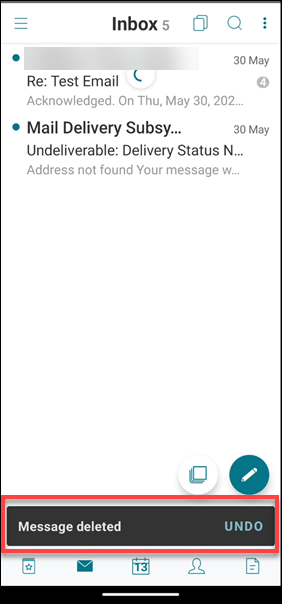
In both delete scenarios (long and short left swipe gestures), the Undo option appears for a few seconds so that you can reverse the delete action.
Tap the Undo button to revese the delete action.
You can delete multiple emails by long-pressing an email item, and then selecting other emails that you want to delete.
Mark option
The Mark option allows you to mark an email as read or unread. This swipe gesture lets you toggle between Read and Unread options.
Long-swipe right to mark an email as unread.
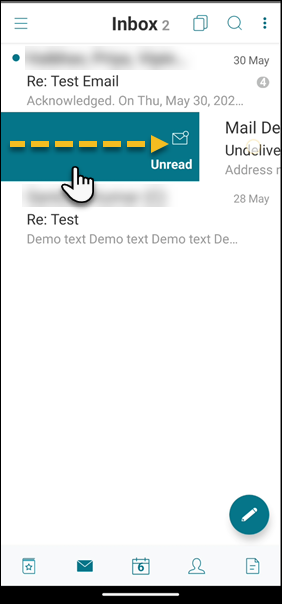
Long-swipe right to mark an email as read.
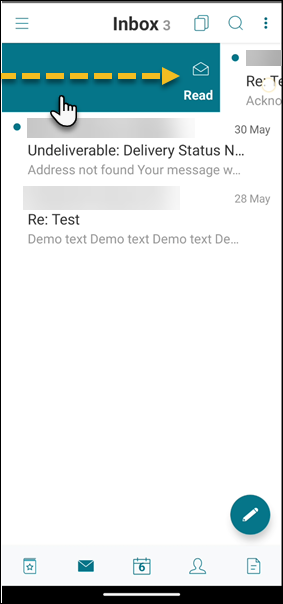
Short-swipe right and tap Read to mark an email as read.
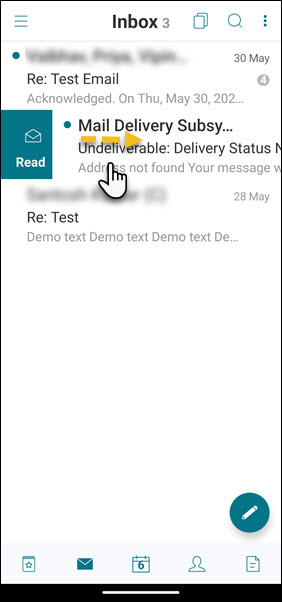
Short-swipe right and tap Unread to unmark an email as unread.