Sync folders and contacts
You can refresh and sync Secure Mail content.
Mail folder sync
You can sync all Secure Mail content by tapping the Sync icon.
Note:
This feature is available for iOS and Android.
The Sync icon appears in Secure Mail slide outs, such as Mailboxes, Calendars, Contacts, and Attachments.
When you tap the Sync icon, the folders that are configured to auto refresh are updated. The timestamp of the last sync appears next to the Sync icon.
To sync your folders
-
Open Secure Mail.
-
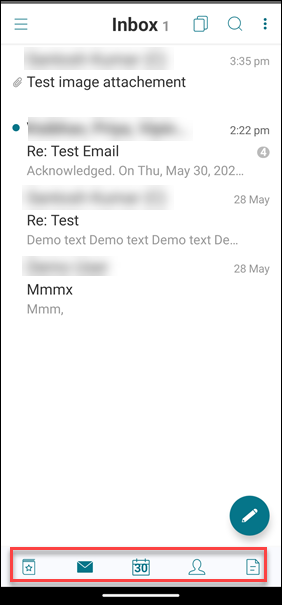
From the available folders on the footer tab bar, tap the folder you want to sync.
-
Tap the hamburger icon on the upper-left corner of your screen.
-
Tap the Sync icon on the lower-left corner of your screen.
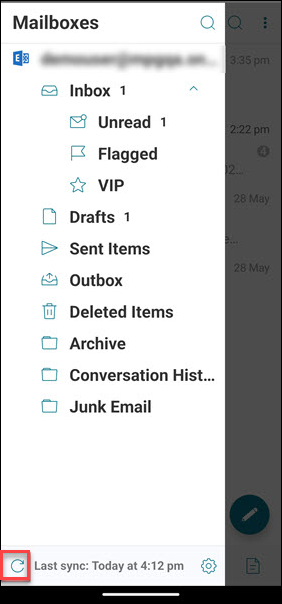
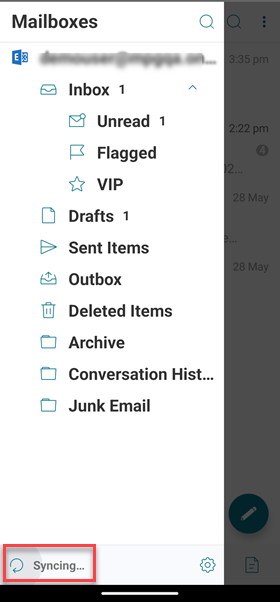
The folder sync progress shows, and the folder is synced. The timestamp appears next to the Sync icon.
Drafts folder auto-sync
In Secure Mail for Android, the drafts folder syncs automatically. Your drafts are available across all your devices. For Android, the feature is available on devices running Office 365 or Exchange Server 2016 and later.
In Secure Mail for iOS, this feature is available on setups running Exchange ActiveSync v16 or later.
If your Secure Mail draft contains attachments, the attachments aren't synced to the server.
The following one-minute video demonstrates how this feature works: