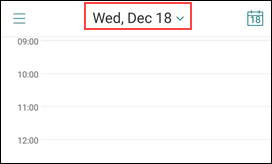
View your personal calendar events
You can import your personal calendar from the native calendar app on your device. Then, you can view your personal events in Secure Mail. Your personal calendar information doesn't sync back to the Exchange or HCL Domino mail server.
Note:
This feature is available for iOS and Android. This feature is not available on Android Enterprise devices.
Enable your personal calendar
You can enable the personal calendar overlay either from the pop-up notification or from Secure Mail settings.
-
In the Secure Mail app, tap the hamburger icon in the upper-left corner of the screen.
-
Tap the gear icon on the lower-right corner of the screen.
-
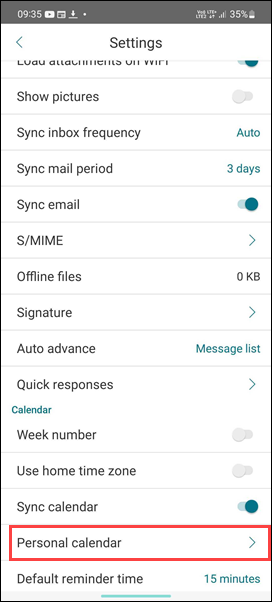
On the Settings screen, tap Personal calendar.
-
Tap Import personal calendar, and turn on the View personal calendar toggle.Note:If Secure Mail prompts, change the privacy settings to allow access to your device calendar.Once you turn on the toggle, the app populates your personal calendar from the device.
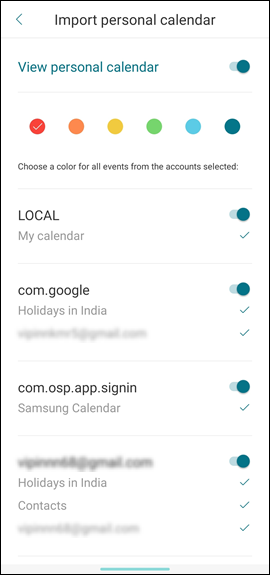 You can select the personal calendar events you want to display. Deselecting them will prevent those events from appearing in your Secure Mail calendar.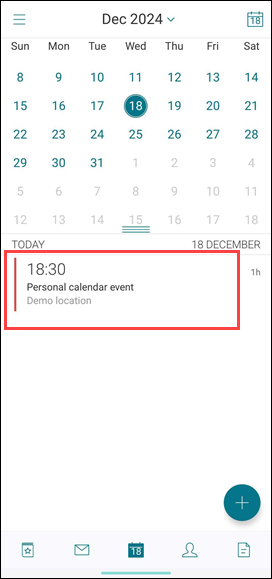
Choose a color for calendar events
In the Import personal calendar screen, users can choose a color for their calendar events.
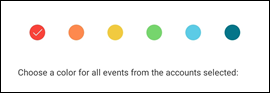
The selected color applies to all the calendar events associated with that account.
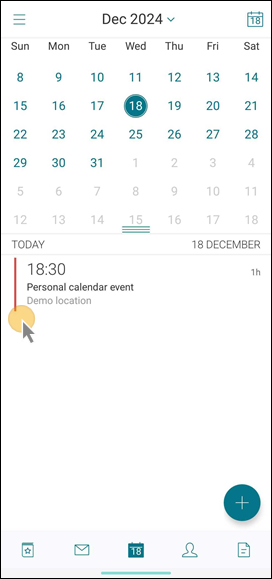
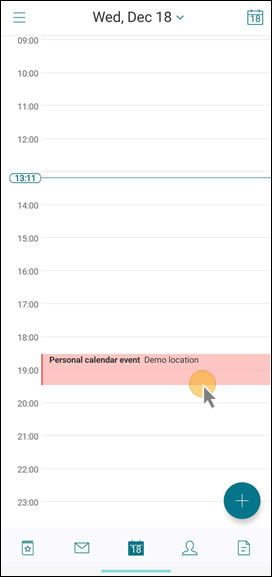
Switch to different calendar modes
Different calendar modes such as Day, Week, Month, and Agenda are available for users. You can switch between all calendar view modes by selecting the required option in the drop-down menu.