
Export your Secure Mail calendar events
Note:
This feature is available for iOS and Android.
To export Secure Mail calendar events to the personal calendar on your device, do the following:
-
Tap the hamburger icon on the upper-left of the screen.
-
Tap the gear icon on the lower-right corner of the screen.
-
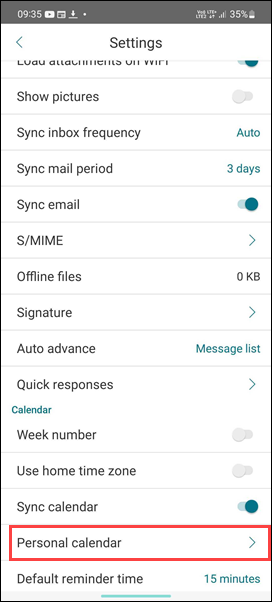
On the Settings screen, tap Personal calendar.
-
Tap Export Secure Mail calendar, and turn on the toggle button of the mail account.
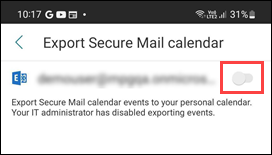 Contact your administrator if this feature is disabled and you see the following message: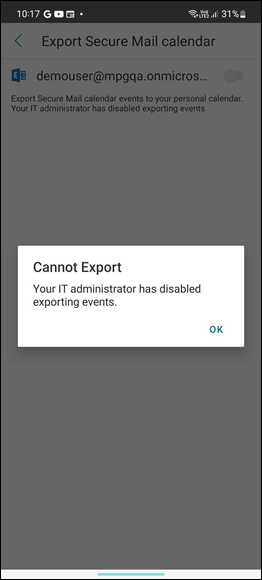
Edit Secure Mail events
To edit Secure Mail events, do the following:
-
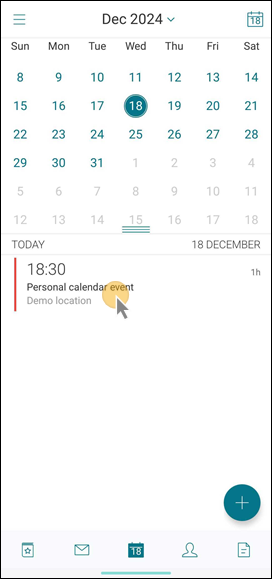
Tap an event in the calendar.
-
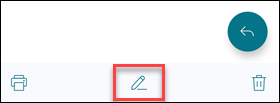
Tap the Pencil icon at the lower-middle of the screen to edit the fields, and then tap Send to confirm or tap Cancel to cancel the edit action.
-
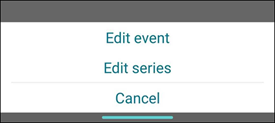
Select the appropriate option from the list.
-
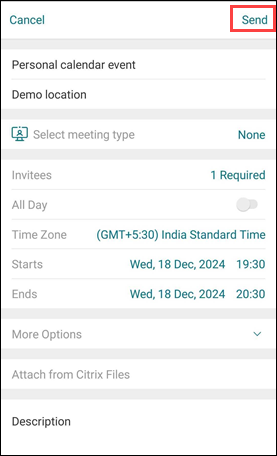
Click Send after editing the relevant information.
Note:
-
Calendar events you export from Secure Mail are read-only.
-
For iOS, this feature works only if iCloud is enabled.
-
For Android, the Secure Mail Event link is not available on Samsung and Huawei devices.
-
For administrative policy settings, see Export Secure Mail calendar events in the Secure Mail product documentation.