
Change how desktops look and work
To control how files and devices are accessed, use the buttons on the toolbar.
A toolbar grip button is displayed at the top of the window or (if maximized) on the screen.
Note:
Contact your administrator if you aren't able to view the Desktop Viewer toolbar.
Click the grip to display the toolbar.


To move the toolbar to another position on the screen
You can move the toolbar so that it does not obscure the other window's content or controls.
-
Click the toolbar grip that appears at the top of the window, and move it left or right.
The toolbar allows you to do the following actions:
-
Go to the home screen of your device by clicking Home.
-
Change the mode from Full-screen to Window.
-
Change your virtual desktop preferences.
-
File access
-
-
Disconnect from the session by clicking Disconnect.
-
Switch to different screens or apps within the session by clicking Switch.
-
Sign out from a managed desktop by clicking Sign Out.
Note:
By default, only the File Access tab is present on the Preferences window when accessing from the toolbar. However, these options are customizable.
To control how local files are accessed
A virtual desktop might need to access files on your local computer. You can control the extent to which the access is granted.
-
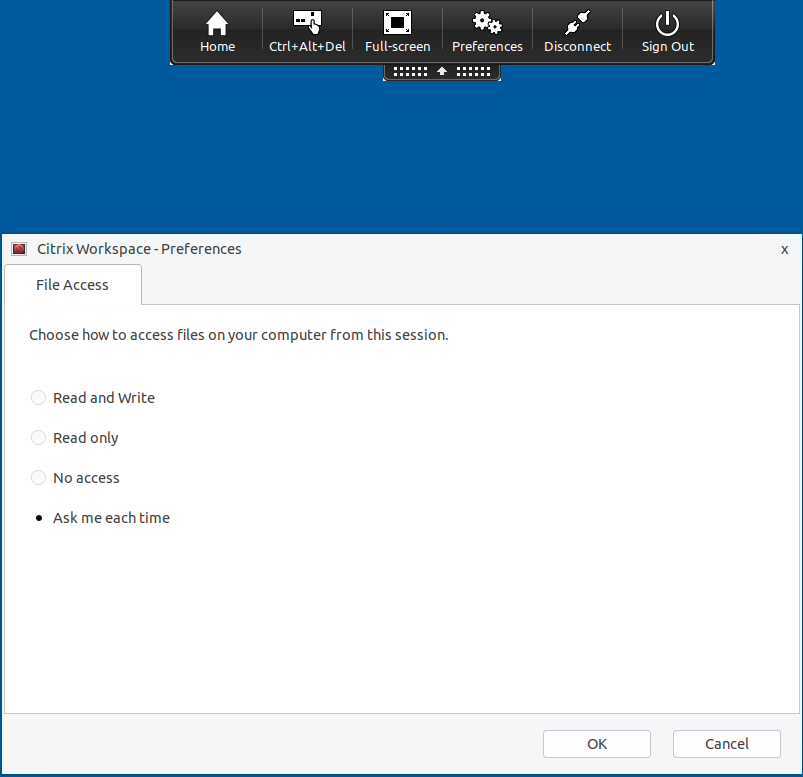
On the toolbar, click Preferences. The following screen appears:
-
Select one of the following options:
Option Description Read and write Allows the virtual desktop to read and write to local files. Read only Allows the virtual desktop to read but not write to local files. No access Does not allow the virtual desktop to access local files. Ask me each time Displays a prompt each time the virtual desktop must access local files. -
Click OK.
To copy files from a virtual desktop to a local system
You can copy files from your virtual desktop to your local system using the Client-drive mapping feature.