
Microphone and Webcam
You can change the way a virtual desktop or application accesses your local microphone or webcam:
To set up a microphone or a webcam, do the following:
-
Open Citrix Workspace app.
-
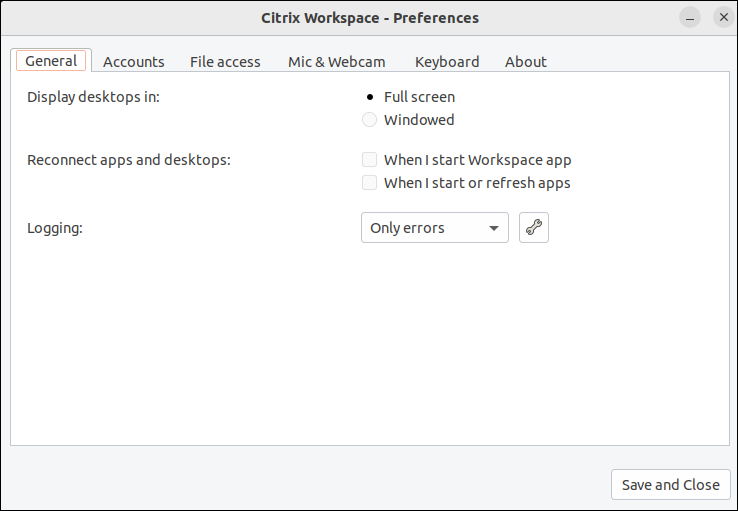
Click the account icon in the top‑right corner and click the Accounts option.Or,Click the App indicator icon in the top‑right corner and click the Preferences option.The Citrix Workspace - Preferences screen appears.
-
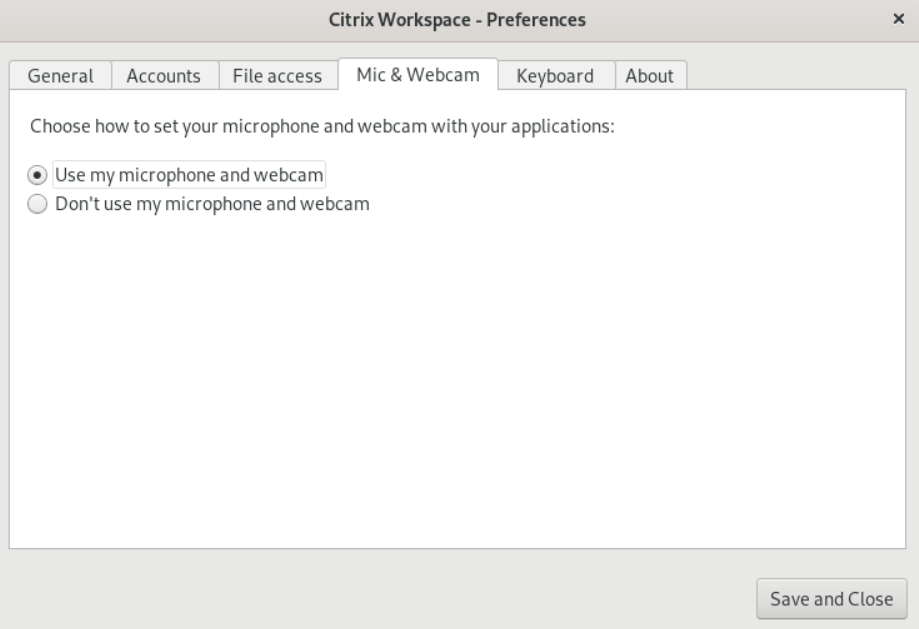
In the Citrix Workspace - Preferences screen, click the Mic & Webcam tab. The following screen appears:
-
Select one of the following options:
-
Use my microphone and webcam - Allow the microphone and webcam to be used by the desktop or application.
-
Don't use my microphone or webcam - Do not allow the microphone or webcam to be used by the desktop or application.
-
-
Click Save and Close.