
Hibernate and Resume virtual desktop sessions
You can use the Hibernate and Resume options on Activity Manager menu to optimize resource utilization by hibernating virtual desktops when not in use and seamlessly resume to their previous state. This not only saves costs and energy but also enhances user workflow with faster session resumption times.
Note:
If you hibernate the virtual desktops for more than 60 days, you can no longer perform hibernate or resume operations.
Hibernate a desktop session:
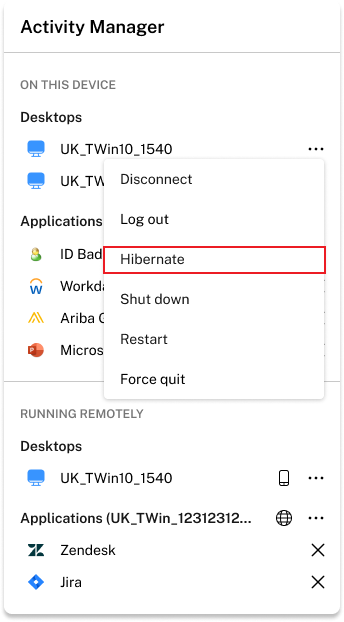
To hibernate a desktop session, you can click the three-dot button (…) and then click the Hibernate option. The desktop initiates the hibernation once you click the Hibernate option. Once the desktop is hibernated, the desktop resource moves to the In Hibernation section on Activity Manager.
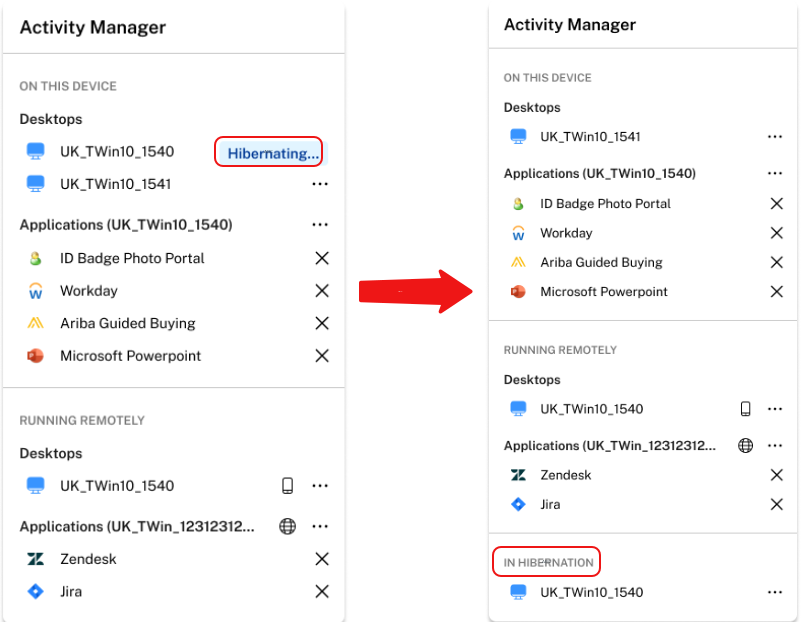
Resume a hibernated desktop session:
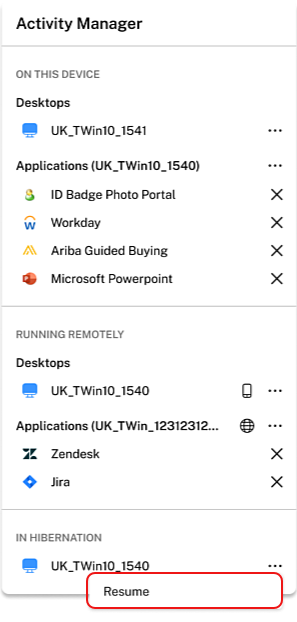
Hibernated desktop sessions are available under the In Hibernation section on Activity Manager. To resume the hibernated desktop session, you can click the three-dot button (…), and then click the Resume option.
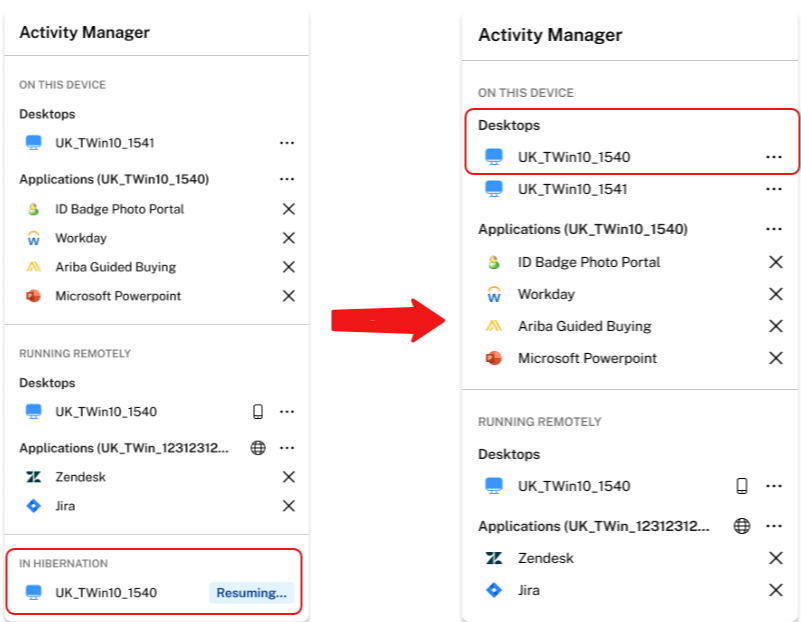
Once you click the Resume option, the desktop gets restored.
Note:
Contact your IT administrator to enable this feature.