
Multi-monitor support
You can use up to eight monitors with Citrix Workspace app for Windows.
Each monitor in a multiple monitor configuration has its own resolution designed by its manufacturer. Monitors can have different resolutions and orientations during sessions.
Sessions can span multiple monitors in two ways:
-
Full screen mode, with multiple monitors shown inside the session; applications snap to monitors as they would locally.Citrix Virtual Apps and Desktops and Citrix DaaS: To display the Desktop Viewer window across any rectangular subset of monitors, resize the window across any part of those monitors and click Maximize.
-
Windowed mode, with one single monitor image for the session, applications do not snap to individual monitors.
Using Citrix Virtual Desktops on dual monitor:
-
Click the Desktop Viewer.
-
Select Restore.Note:Step 2 is applicable only when session is in Fullscreen mode. If you are in Restore mode, the Restore option isn't available. In the old Desktop Viewer toolbar, the corresponding option for Fullscreen or Restore is labeled as Fullscreen or Window.
-
Drag the Citrix Virtual Desktops screen between the two monitors. Make sure that about half the screen is present in each monitor.
-
From the Citrix Virtual Desktop toolbar, select Fullscreen.The screen is now extended to both the monitors.
Similarly, you can connect up to eight monitors as well. You can drag the Citrix Virtual Desktops screen between the required number of monitors. Make sure that the screen is present on each monitor.
Multi-monitor layout selection
Starting with version 2503, the Multi-Monitor Selector (MMS) allows you to choose which displays to use in full-screen mode for desktop sessions only, not for seamless sessions. A new Multi-Monitor button has been added to the toolbar, which appears only when more than one screen is connected.
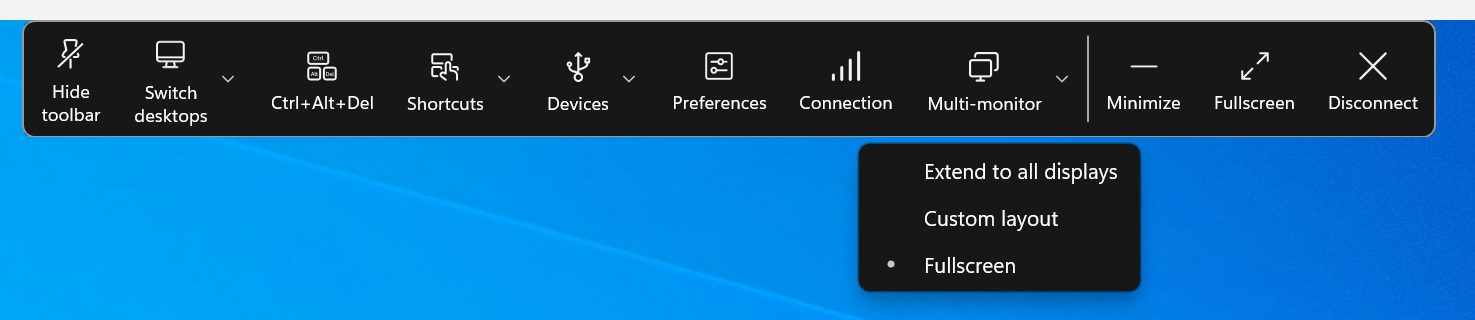
Multi-monitor menu options
The toolbar button includes three drop-down menu options for desktop sessions in full-screen mode:
-
Extend to All Displays: The session switches to full-screen mode on all connected screens.
-
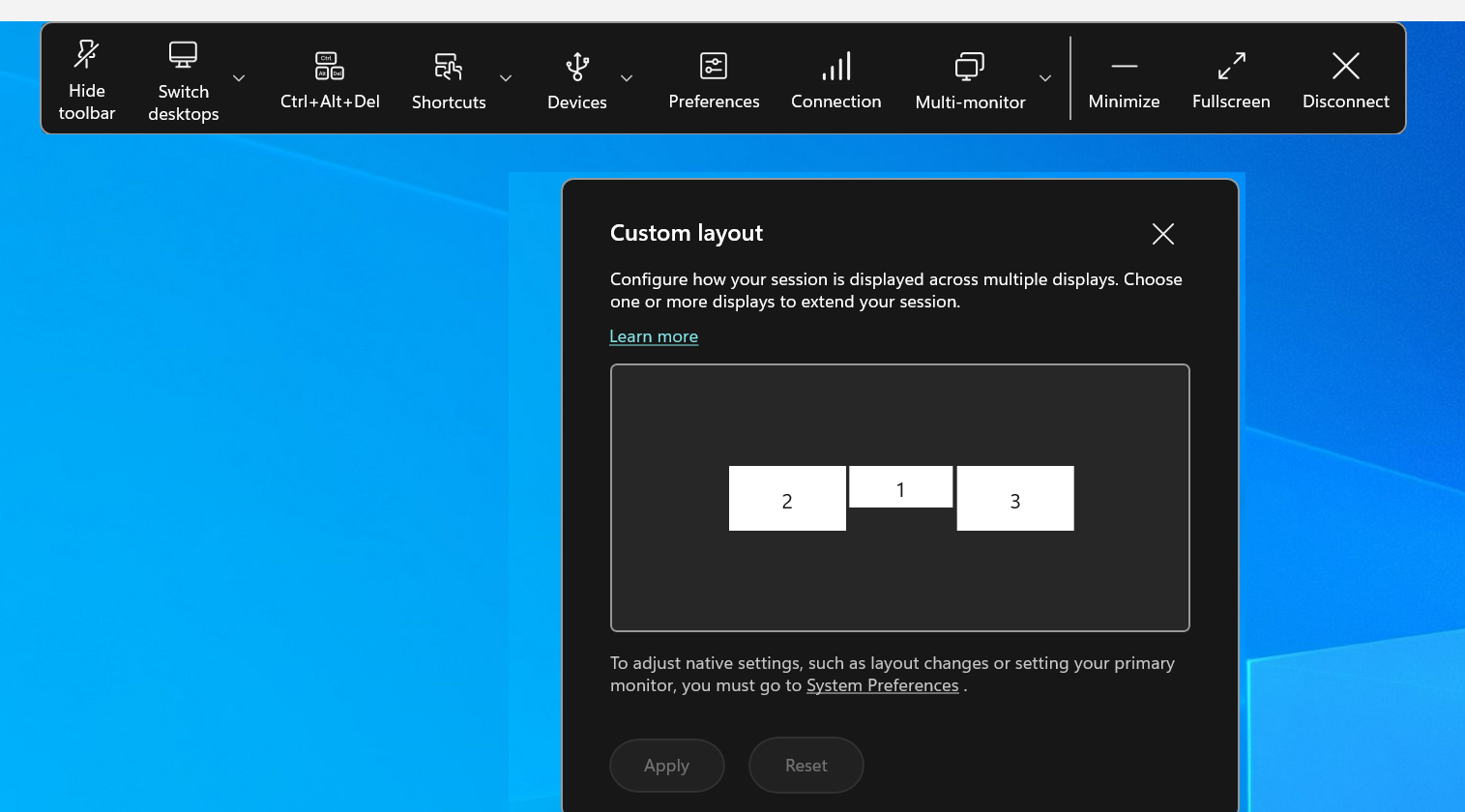
Custom Layout: This option opens a custom monitor selector displaying the layout of the Windows system. You can click the rectangles in the selector to choose which screens to use and then click Apply. The session then uses the selected screens in full-screen mode.
-
Fullscreen: The session switches to full-screen mode on whichever monitor the session is currently active on. For example:
-
If your session is active on one monitor, it will be full screen on that monitor.
-
If your session is active on two monitors, it will be full screen on those two monitors.
-
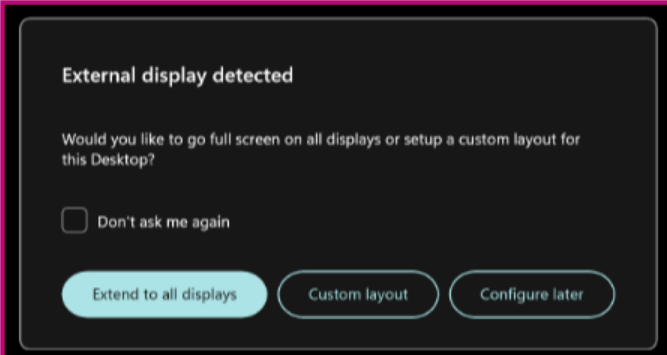
When a new monitor is plugged in, a notification appears for you to make a selection. You can check Remember my preference to mute this notification.