
Keyboard
Keyboard settings allow you to customize the keyboard shortcuts, layout, and input mode settings.
You can access the Keyboard settings in the following ways:
-
On the Citrix Workspace app home page, go to Account icon > Accounts > angle brackets
 and click Keyboard.
-
From the quick access menu of Citrix Workspace app, go to the Preferences icon
 > angle brackets and click Keyboard.
-
For the virtual desktop session, go to Show toolbar > Preferences icon > angle brackets and click Keyboard.
-
For the seamless app session, go to Citrix viewer > Preferences in the menu bar. Click angle brackets and then click Keyboard.
Note
Keyboard settings require a restart of the application for the changes to take effect.
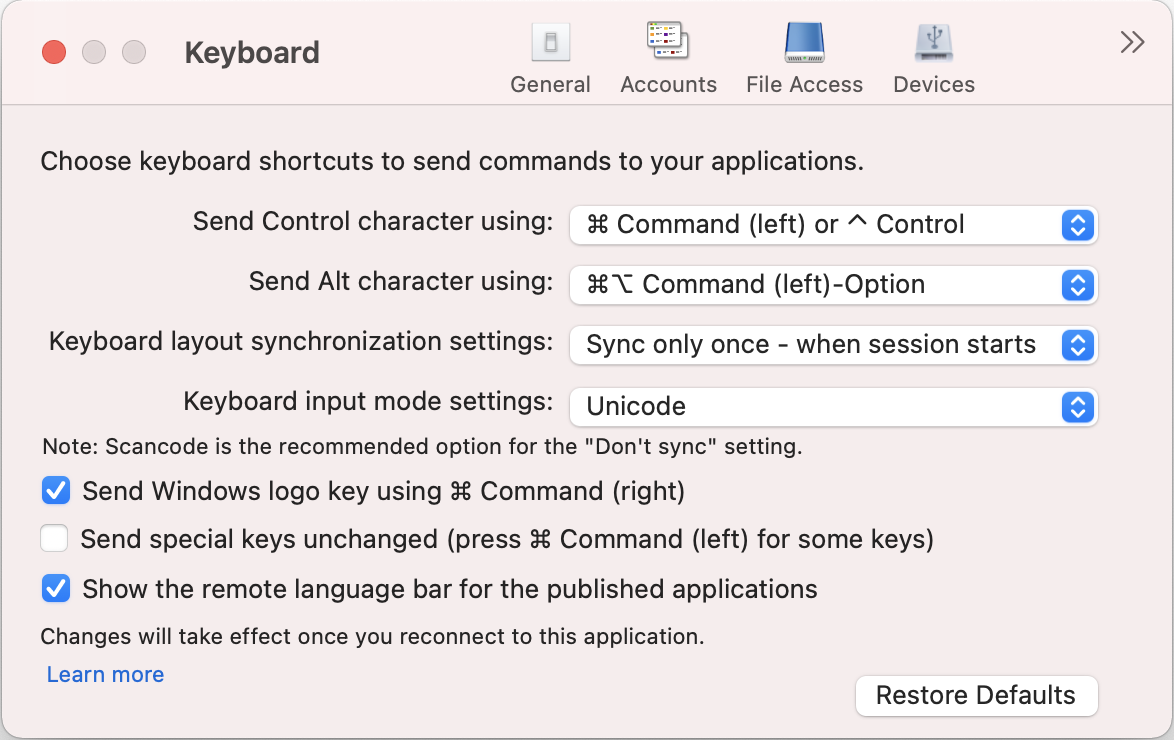
Keyboard shortcuts
You can choose the preferred key on your Mac keyboard for the virtual sessions.
To set a preferred key for the control character, select any of the following options from the Send Control character using drop-down menu:
-
\^ control
-
command (left) or \^ control
To set a preferred key for the alt character, select any of the following options from the Send Alt character using drop-down menu:
-
command (left)
-
command (left) or - option
To send the Windows logo key using a command (Right) key on your Mac, enable Send WIndows logo key using Command (right).
You can send special keys unchanged by pressing a command (Left) key with special keys. To enable this feature, select Send special keys unchanged (press Command (left) for some keys).
Keyboard layout
To apply keyboard layout synchronization settings, select any of the following options from theKeyboard layout synchronization settings drop-down menu:
-
Sync only once - when session starts
-
Allow dynamic sync
-
Don't sync
To show the remote language bar for the published application, select Show the remote language bar for the published applications.
Keyboard input mode
To choose keyboard input mode, select any of the following modes from the Keyboard input mode settings drop-down menu:
-
Unicode
-
Scancode
Note
The Scan code input mode is the recommended option for the Don't sync setting.
Restore defaults
To restore to the default settings, click Restore Defaults at the bottom.