
Set up your account
You can set up one or more accounts to access your resources.
Create an account
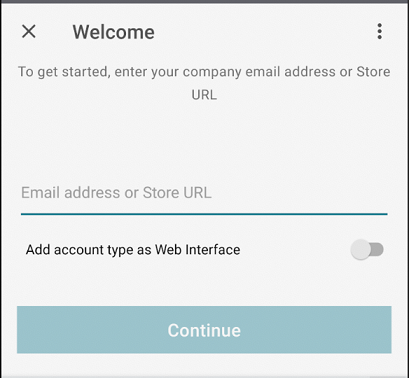
When you launch Citrix Workspace app for the first time, the welcome screen offers you to access your organization's applications. Enter the information about your account that your organization provides.
-
From the Citrix Workspace app home page, click the plus icon at the bottom-right of the screen to launch the Add Account dialog.
-
In the Add Account dialog, enter the store URL provided by your IT administrator.
Note:
-
You can use your work email address to access resources. For some organizations, you require your organization’s server address, such as
servername.company.com. -
You require your authentication credentials, such as user name, password, and domain.
Edit an account
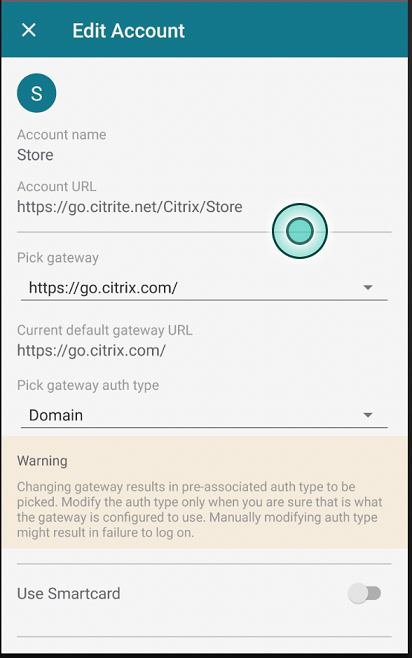
Select Edit to change the Citrix Gateway address and authentication type for a specific user account.
Launch a resource
On your device, tap the Apps, or Desktops to view the resources you can access.
Add a resource to the home screen
Click the Star icon on the resource icons to add the apps or desktops to the Home screen. A yellow star indicates that the resource is already added to the Home screen. To remove the resource from the Home screen, click the yellow star icon and it is removed from the Home screen.
Install a certificate
If your organization requires a certificate on your device, your organization must either provide a web address for the download or send it as an email attachment. When you have the file, tap it to install it on your device.
Create multiple accounts
You can create more accounts, each with different favorite applications and settings. From the list of accounts, tap Add Account.
Delete an account
In the Accounts page, select the trash bin icon against the user account.